 English
 Add to Chrome
 Add to Edge
 Add to Firefox
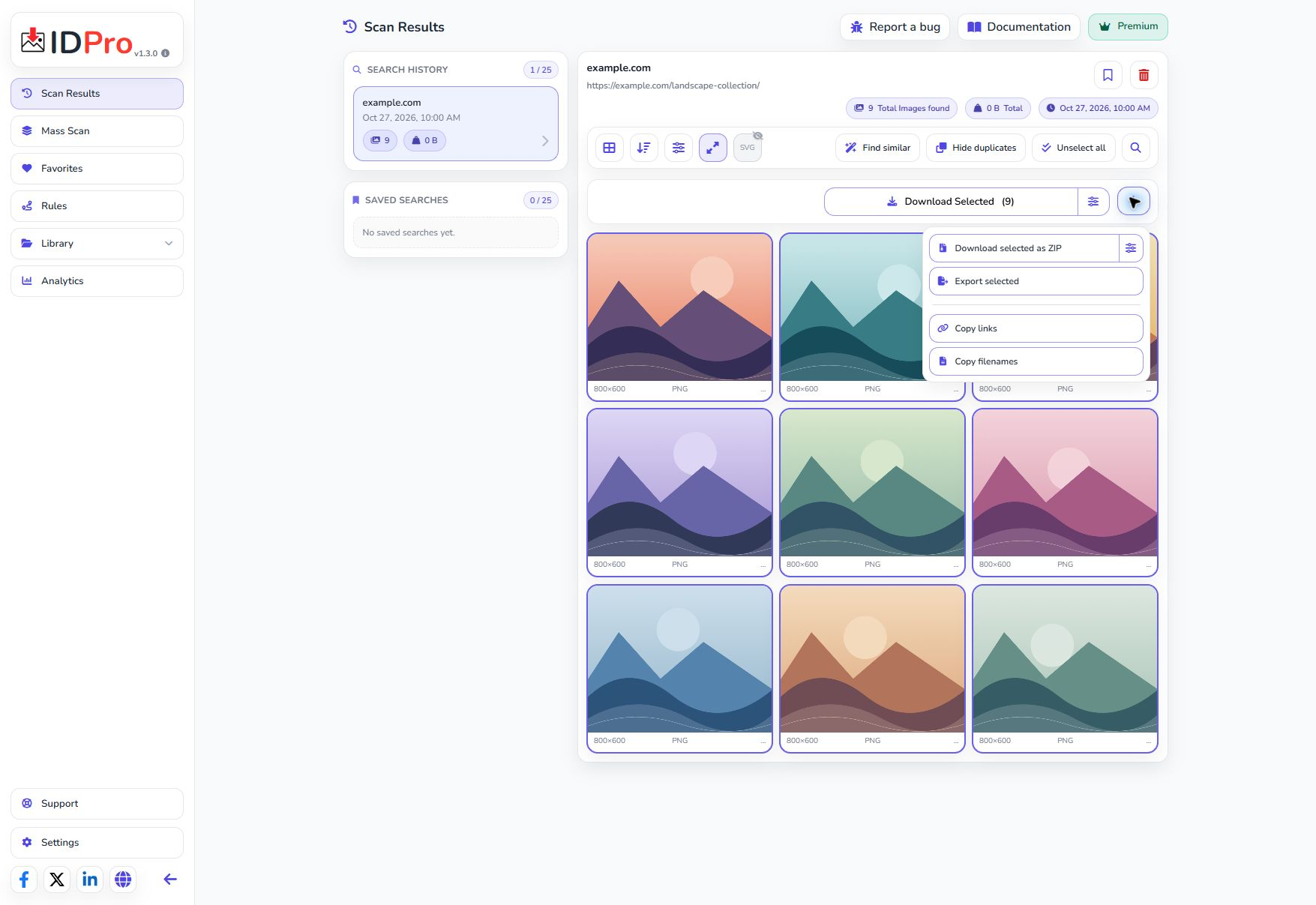
Open the page in Chrome. When the photos have appeared, use Image Downloader Pro to find them. Select the photos you want. With the Premium plan, you can download them together in a ZIP file. With the free plan, you can download them as separate files up to your daily limit.
Scroll through the gallery before searching for images
Scroll through the gallery before you scan. Some pages load the next row only as you reach it. If the gallery has a button to show more pictures, use it until the last photo you want is visible. Scanning one page does not automatically open every linked gallery.
Select the images and leave out small icons
Open the extension and compare the pixel dimensions shown under the previews. A gallery might contain both a 160 × 120 thumbnail and a 1600 × 1200 version of the same photo. Keep the larger one. If icons fill the results, set a minimum width that still includes your smallest wanted photo.
Use the control to select all visible results after filtering. Check the selection count, then deselect any logos or repeated photos that still appear. If you see only thumbnails, open one photo in the gallery viewer and scan again to see which sizes the page provides.
Download the selection as one ZIP
Choose the ZIP download option. When the download finishes, open the downloads list in Chrome. Find the ZIP file on your computer and extract it. Check that the folder contains the photos you chose. If a photo is missing, open that photo on the website and try downloading it separately.
If the selected files are very large, the extension may split them into several ZIP archives.