
 English
 Add to Chrome
 Add to Edge
 Add to Firefox
How to Download Images from an Entire Website
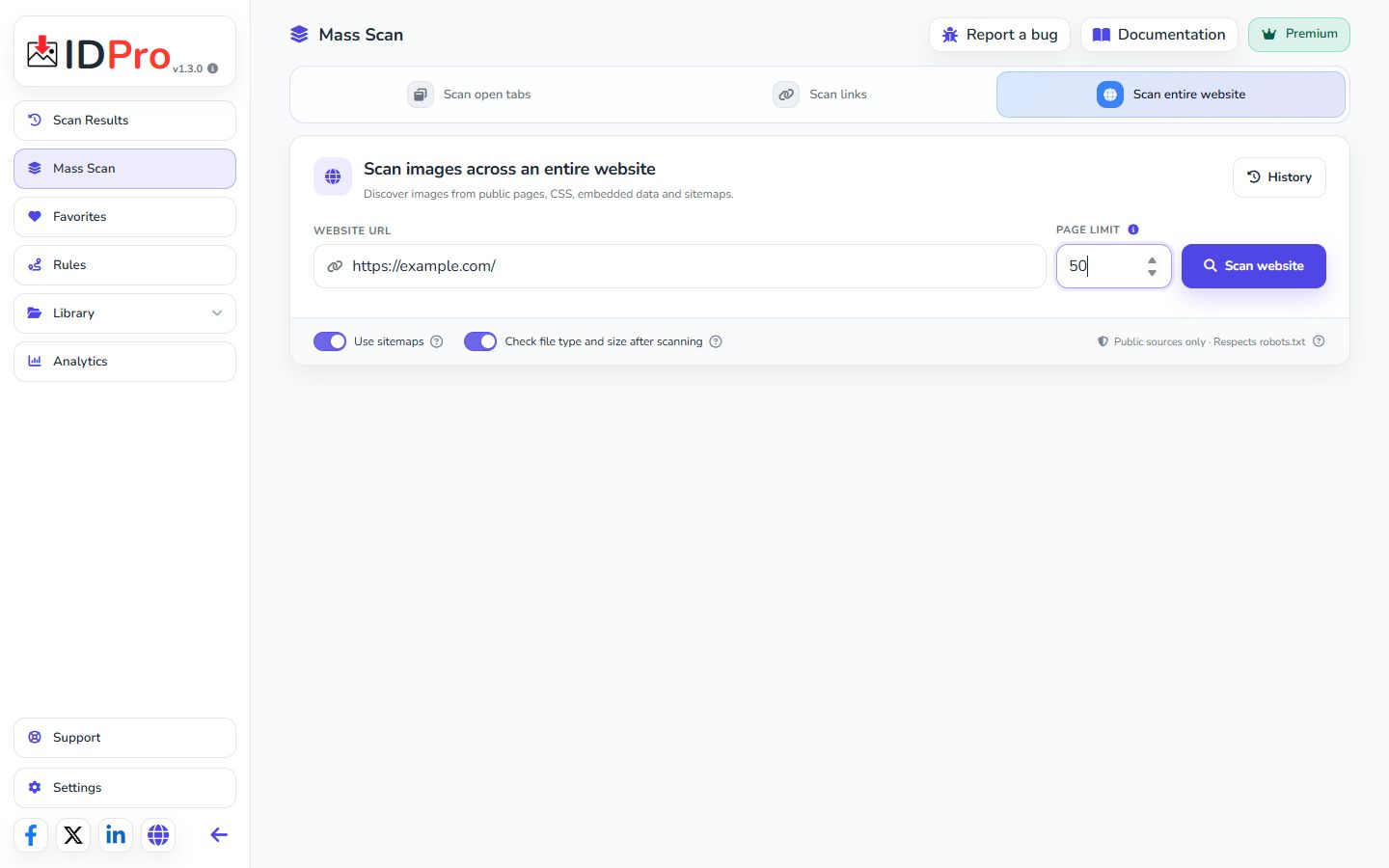
Open Dashboard, choose Mass Scan and then Scan entire website. Enter a starting page, review the scan settings and start the scan. Review the discovered images before selecting files to download. A website scan is not a promise to retrieve every file stored on a server.
Choose the right scan scope
Use Scan open tabs for pages already open in your browser, Scan links for a prepared list of page URLs, or Scan entire website to discover public pages from a starting URL. The website workflow follows available sitemaps and eligible links on the main domain while respecting robots.txt.
Follow the workflow
- Open Dashboard → Mass Scan → Scan entire website and enter the website page you want to start from.
- Review the available scan controls and start with a manageable scope. The website workflow has a safety limit of 10,000 pages.
- Start the scan and watch the progress. If you stop early, review the results already collected instead of treating the run as complete.
- Open Images, narrow the collection with filters, and inspect the dimensions, file types and source pages of useful candidates.
- Select the images you want and choose Download selected. Export a report separately if you also need an inventory of the scan.
Check the result
Compare the selected files with their source pages. Remove interface graphics and unwanted variants, check a few saved files at full size, and retain page URLs when you need to trace where an image was found. A report contains data about images; it is not the same as downloading the image files.
Understand the limits
Some pages or image sources require login, depend on interaction, or cannot be read by a public-source scan. Robots restrictions, inaccessible pages and the safety limit can also make a result partial. Inspect Errors and scan progress before deciding whether your collection is complete.
Read the documentation
Frequently asked questions
Does scanning a website download the images automatically?
No. Scanning discovers image references. Review the results and select the images you want to download.
Can a website scan find images that a page scan misses?
It can discover references on other eligible public pages and sources. It still cannot guarantee hidden originals or files that the website does not expose.